
myQ Shared Devices Missing After Accepting an Invitation
When a myQ invitation succeeds but no shared devices appear, check the invited login, selected Home and devices the owner shared.
Show me the steps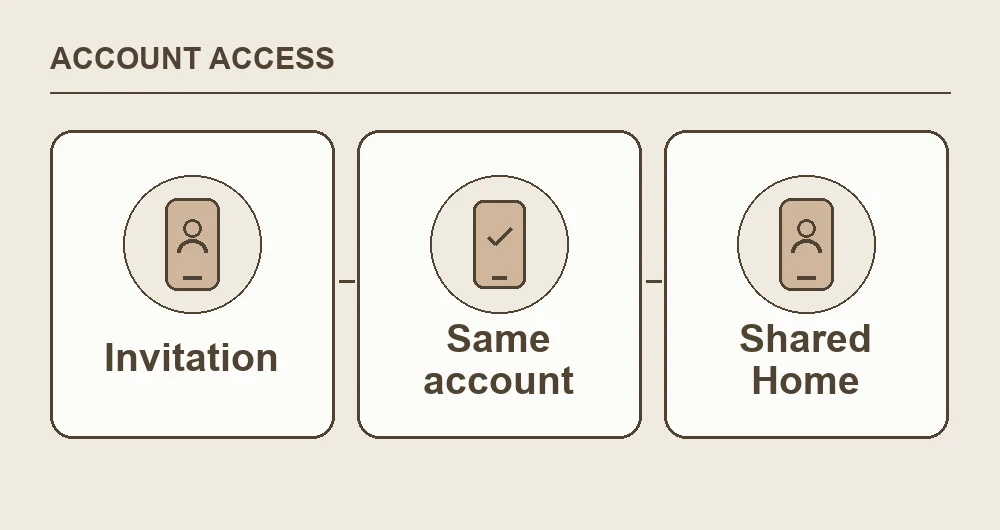
Symptoms
- Accepted invitation but empty Devices view
Applies to
- App
- Consumer myQ shared homes
Before you start
- Invitation accepted in the app
Why this can happen
- The app may be displaying your personal home rather than the shared home.
How to check and fix it
Tap the home name at the top of the app
Tap the home name at the top of the app.
What you should seeAvailable homes are listed.
Inspect Devices in the selected home
Inspect Devices in the selected home.
What you should seeThe shared door appears.
Ask the owner to review any access period
Ask the owner to review any access period.
What you should seeThe intended device and permitted time are confirmed.
When to stop
- Do not delete and re-add the owner’s device to repair an invitation.