
Troubleshoot myQ App, Wi-Fi and Garage Door Problems
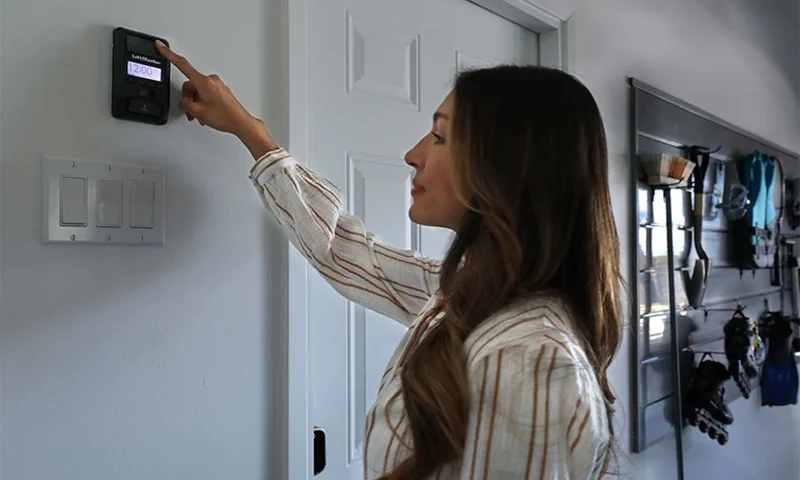
If the myQ app is not working, test the wall control first. A door that moves locally but shows Offline in myQ points you toward the opener or hub’s power and network. A door that also fails at the wall control needs a door or opener diagnosis. If the app says the device belongs to another account, use the ownership guide.
When myQ shows the door online but a tap does nothing, check which device you selected, your access to it and the door’s actual position. If you cannot see the opening clearly or movement is abnormal, stop the test.
Consumer myQ app and residential opener/hub; Community permissions go to property management.
App will not load, device offline, or door will not move?
These are three different faults. Start with the symptom you can actually observe.
Before you begin
- Keep a working authorized backup entry method.
- Write down the exact message, time and affected device. Do not keep issuing remote commands while someone investigates the door.
What to do
- If the app will not load: close and reopen it, restart the phone, and confirm a website opens. Compare Wi-Fi with mobile data if available. A working mobile connection but failing home connection points toward that network, not proof of a broken opener.
- If the app loads but the device is offline: check device power and whether the home network has internet. Note recent router changes. For hubs, observe the LED and use the matching official diagnostic—not an LED interpretation from another model.
- If a hub remains blinking blue during setup: stay near it, check the password for typos or pasted spaces, confirm a strong 2.4 GHz signal and retry that setup stage.
- If the device is online but the door does not move: verify a clear path and inspect the floor-level safety sensors for obstruction or misalignment. Compare normal wall-control/remote operation before pursuing app pairing.
- If an online hub has wrong door status or pairing fails: inspect the door-sensor stage. Use the official battery test rather than assuming Wi-Fi is the cause.
What success looks like
Either normal control is restored, or you have isolated app/network, device connectivity, sensor, ownership or door-operation symptoms for the correct support guide.
Pause here if…
- The wall control also fails, the door moves abnormally, or a safety fault is present. Do not bypass sensors, warnings or mechanical protections.
- Error 310 appears: follow ownership support.
- A proposed fix requires disabling network security or resetting unrelated devices.
Common questions
Does green on the hub prove the door can move?
A solid green hub LED indicates connectivity, not proof that sensor and opener pairing are correct.
Can the hub be too close to the opener?
The official command-troubleshooting guide recommends 4–6 feet from the motor and a position inside the garage where the warning light remains visible to the door. Follow the installation guide before remounting.
What should I send support?
Model, app/OS version, exact error, LED pattern, whether the wall control works, and the last successful step. Exclude passwords and access codes.
Read the official guidance: App connection and loading issues ↗ · Hub or Control offline ↗ · Hub blinking-blue troubleshooting ↗ · Hub garage door will not open or close ↗ · Door sensor battery test ↗ · Ownership and Error 310 ↗
Next: Reconnect after changing your router or Wi-Fi password · Create a useful alert—and test where it arrives
Another account or Error 310?
Use the official ownership route with the legitimate owner. Changing Wi-Fi is not an ownership transfer. Keep the exact message and model available before changing any device settings.
Read the official guidance: Ownership and Error 310 ↗