
myQ Change Password Missing After Apple, Google or Amazon Sign-In
Find the right password settings when myQ uses Apple, Google or Amazon sign-in. Identify the account method before changing credentials.
Show me the steps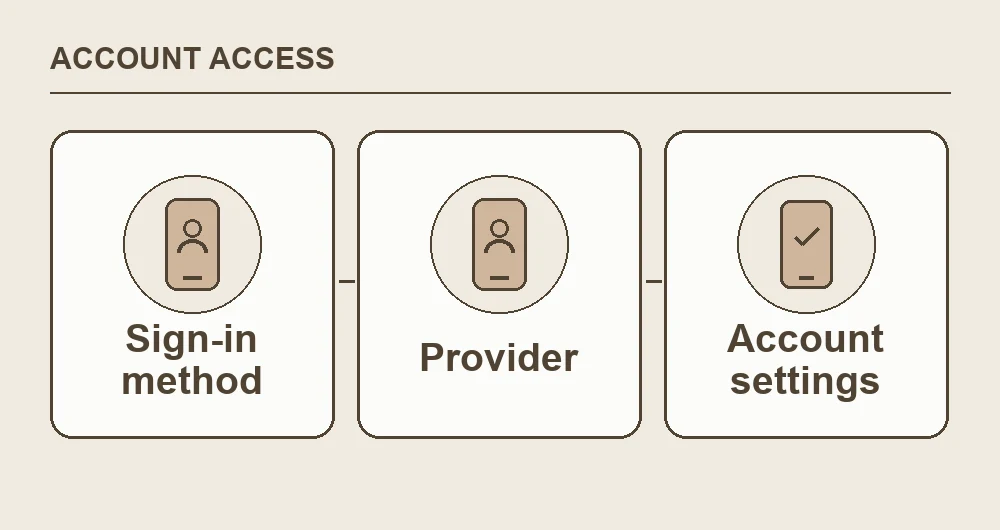
Symptoms
- No Change Password option
Applies to
- App
- Consumer myQ using Apple, Google or Amazon SSO
Before you start
- Know which provider signs you in
Why this can happen
- Provider-managed accounts do not have a separate myQ password.
How to check and fix it
Check which provider you normally select on the sign-in screen
Check which provider you normally select on the sign-in screen.
What you should seeThe credential owner is identified.
Use that provider’s official account settings or recovery flow
Use that provider’s official account settings or recovery flow.
What you should seeProvider credentials are repaired.
Return to myQ and choose the same provider
Return to myQ and choose the same provider.
What you should seeYour existing account signs in.
When to stop
- Do not disconnect sign-in methods as a first troubleshooting step.