
LiftMaster Opener Blinking Blue and Green During Wi-Fi Setup
When a built-in Wi-Fi opener alternates blue and green, check the 2.4 GHz network, password and signal near the opener.
Show me the steps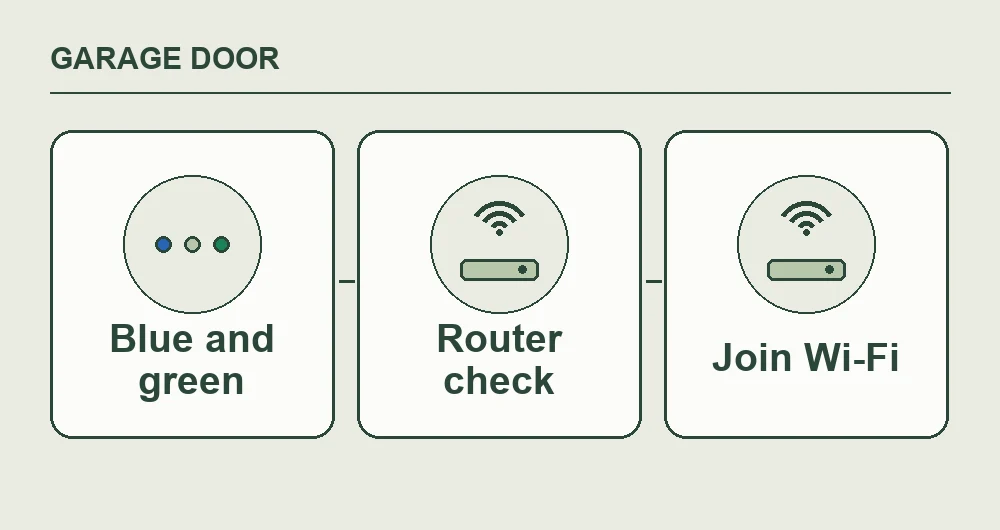
Symptoms
- Wi-Fi LED blinks blue and green
Applies to
- App
- myQ iOS/Android; menu labels vary by release
- Hardware
- Garage door opener with built-in myQ Wi-Fi, not a separate hub
Before you start
- Authorized account/device owner; safe physical access.
- Record the model and displayed LED or error before changing anything.
Why this can happen
- Weak coverage
- Changed network credentials
- Router restrictions
How to check and fix it
Blue and green
If the router, SSID or password changed, use Update Wi-Fi Settings; otherwise test Wi-Fi beside the opener.
What you should seeCurrent credentials and usable coverage confirmed.
Restart the opener using its manual
Restart the opener using its manual. Restart the router; after internet returns, restart the opener again.
What you should seeLED changes to solid green.
Join Wi-Fi
If unsuccessful, use the matching opener’s Wi-Fi-clear procedure and repeat setup.
What you should seeNew Wi-Fi association succeeds.
When to stop
- Escalate persistent router association failure to the ISP/router manufacturer and myQ support; record LED progression.