
LiftMaster Opener Stuck on a Solid Blue Wi-Fi Light
A solid blue light on a myQ Wi-Fi opener indicates the phone connection stage. Check how the opener joins the garage’s Wi-Fi next.
Show me the steps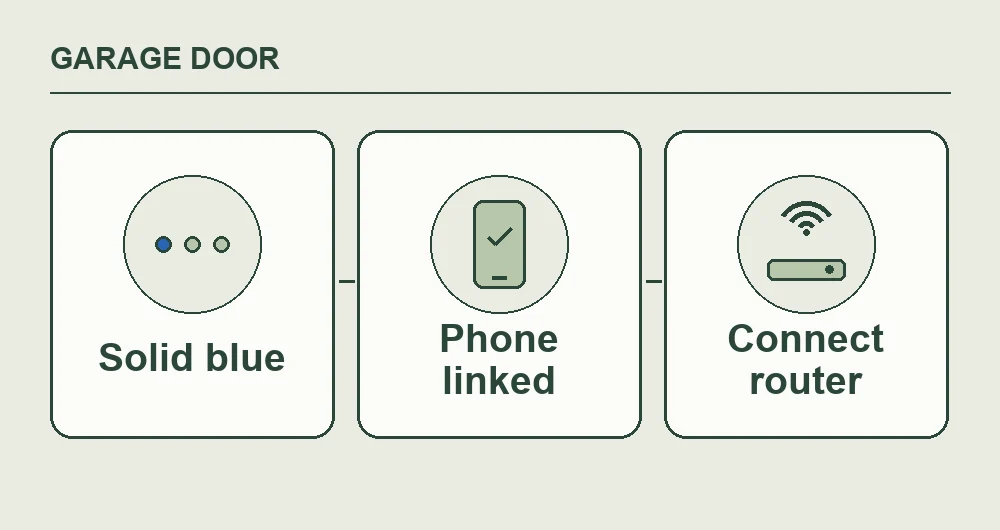
Symptoms
- Solid blue persists during setup
Applies to
- App
- myQ iOS/Android; menu labels vary by release
- Hardware
- Garage door opener with built-in myQ Wi-Fi, not a separate hub
Before you start
- Authorized account/device owner; safe physical access.
- Record the model and displayed LED or error before changing anything.
Why this can happen
- Phone connected, but Wi-Fi handoff incomplete
- Automatic mobile-data switching or wrong Wi-Fi password
How to check and fix it
Solid blue
Keep the phone near the opener; verify the password and signal at the installation point.
What you should seeCorrect network is available.
Phone linked
Temporarily turn off iPhone Wi-Fi Assist, or Android Switch to mobile data/Smart Network Switch where available.
What you should seePhone stays on setup Wi-Fi.
Connect router
Restart the opener using its model instructions, then repeat Garage Door Opener setup in myQ. A non-battery opener can be unplugged for 10 seconds.
What you should seeSolid green confirms connection.
When to stop
- Persistent solid blue after these checks: contact myQ support; report the model and phone OS.