
LiftMaster Opener Solid Green but Missing From myQ
If the LiftMaster opener’s Wi-Fi light is solid green but the door is missing from myQ, check the signed-in account and the selected Home.
Show me the steps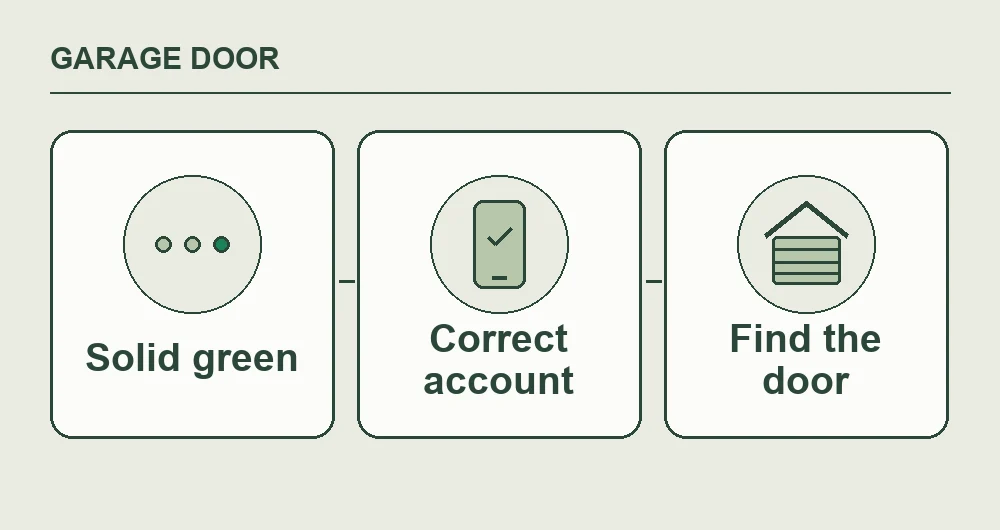
Symptoms
- Solid green LED; opener absent from home screen
Applies to
- App
- myQ iOS/Android; menu labels vary by release
- Hardware
- Garage door opener with built-in myQ Wi-Fi, not a separate hub
301 · Hub/gateway registration
If you arrived by error code, confirm the device and symptoms above first. An app error code does not identify a particular LED pattern.
Before you start
- Authorized account/device owner; safe physical access.
- Record the model and displayed LED or error before changing anything.
Why this can happen
- Wrong account or shared-household view
- Account enrollment incomplete
How to check and fix it
Solid green
Check the intended account or household view; use the same single-sign-on provider originally used.
What you should seeExpected device becomes visible.
Correct account
For the documented legacy enrollment flow, choose Add device → Accessory → Internet Gateway, then enter the opener’s myQ serial number. Follow the current app prompts if menus differ.
What you should seeSerial is accepted and device can be named.
Confirm the device appears in the intended account
Confirm the device appears in the intended account.
What you should seeEnrollment is complete.
When to stop
- If solid green persists with no device, contact myQ support before any factory reset that could erase settings.