
Reconnect myQ After a Router or Wi-Fi Change
If myQ stopped working after you got a new router or changed the password, reconnect your opener or hub to the new Wi-Fi.
Show me the steps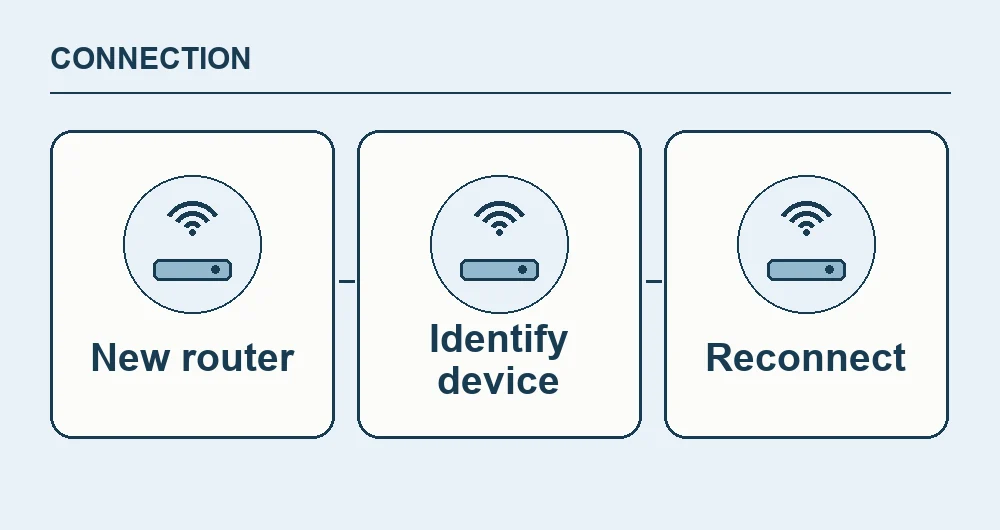
Symptoms
- Offline after new router, ISP, network name or password
Applies to
- App
- myQ iOS/Android; menu labels vary by release
- Hardware
- Previously connected myQ device already present in the account
Before you start
- Authorized account/device owner; safe physical access.
- Record the model and displayed LED or error before changing anything.
Why this can happen
- Device still has old Wi-Fi credentials
Reconnect a LiftMaster Opener or myQ Hub After a Router Change
When myQ goes offline after a new router, Wi-Fi password or network name, identify which device stores those settings. A built-in Wi-Fi LiftMaster opener reconnects at the opener. Smart Garage Control uses the hub’s connection, and the 828LM Internet Gateway connects by Ethernet.
Keep the device in the myQ account while you check your connection and follow the equipment-specific Wi-Fi change instructions. Confirm that the new network works on your phone in the garage before retrying, then check that the door status matches in the app.
How to check and fix it
Keep the new Wi-Fi credentials ready and enable phone Bluetooth
Keep the new Wi-Fi credentials ready and enable phone Bluetooth. Select the existing offline device.
What you should seeCorrect existing device selected.
Identify device
Choose Reconnect your device or troubleshooting → Update Wi-Fi Settings. Alternatively use Settings → Devices → device → Update Wi-Fi Settings.
What you should seeModel-specific reconnection starts.
Reconnect
Complete the prompts near the device, then repeat separately for other offline devices.
What you should seeEach device returns online.
When to stop
- If recovery fails, record its final LED and app error. Do not delete working account devices merely to change Wi-Fi.
See how these checks fit together
Common questions
Is a myQ Wi-Fi reset the same as a factory reset?
No. Updating the network connection, erasing equipment settings and transferring account ownership are different actions. Use the reconnect instructions for your exact model; do not copy another device’s button-hold sequence.
Will reconnecting Wi-Fi fix Error 310?
No. Error 310 needs the account-ownership route. Recover your own account or coordinate with the legitimate previous owner before making changes.