
myQ Smart Garage Hub Blinking Blue or Not Responding
A blinking blue light on the small myQ hub means it is waiting to connect. Start by checking that you have the hub near your garage door and your Wi-Fi password handy.
Show me the steps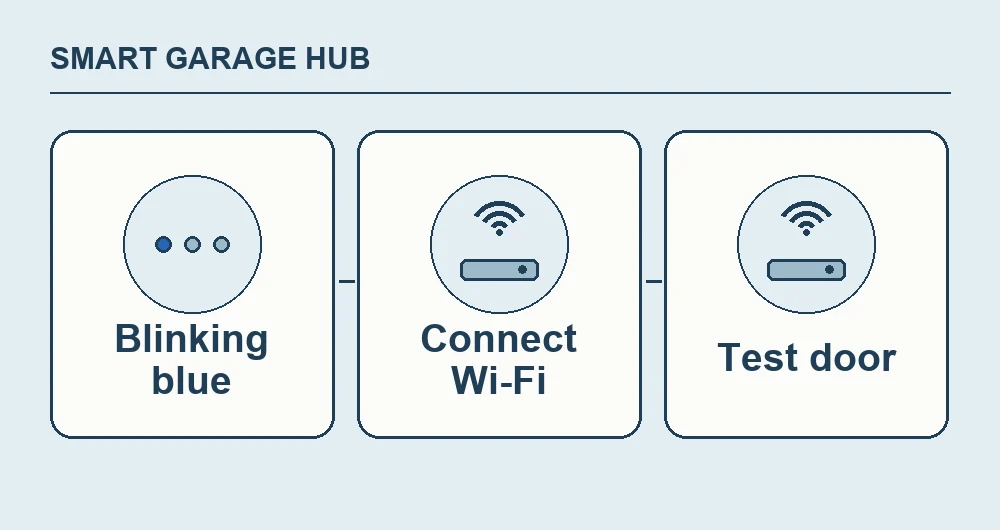
Symptoms
- Blinking blue hub LED
Applies to
- App
- myQ iOS/Android; menu labels vary by release
- Hardware
- Separate myQ Smart Garage Hub or Smart Garage Control, not built-in opener Wi-Fi
Before you start
- Authorized account/device owner; safe physical access.
- Record the model and displayed LED or error before changing anything.
Why this can happen
- Wi-Fi setup incomplete
- Password or local connection failure
myQ Hub Not Working With App Control
When a myQ Smart Garage Hub or Smart Garage Control will not work in the app, start with the hub’s LED and its status in myQ. If the hub shows Offline, verify outlet power and the home network. If the hub appears online but the door does not respond, check the separate door sensor and try the wall control.
Use the myQ device status to choose the next step. A blinking blue light is the setup signal. A solid green light means the hub has reached myQ, so move on to the sensor, opener and access checks. A status that disagrees with the door’s position can point to the sensor or its battery.
How to check and fix it
Check the phone is near the hub and that the home internet works
Check the phone is near the hub and that the home internet works.
What you should seeLocal setup conditions are ready.
Type the correct Wi-Fi password rather than pasting it
Type the correct Wi-Fi password rather than pasting it. Confirm strong 2.4 GHz coverage at the hub.
What you should seeCredentials contain no accidental spaces.
Restart Wi-Fi setup in the app and watch the hub LED
Restart Wi-Fi setup in the app and watch the hub LED.
What you should seeSolid green confirms online state.
When to stop
- If repeated setup fails with good coverage, give myQ support the model and final LED. Built-in opener reset buttons do not apply.