
Residential equipment identification. Exact model and manual take priority over appearance.
Connect LiftMaster or Chamberlain: choose your model’s setup route
Built-in Wi-Fi, a separate garage hub and an Ethernet Internet Gateway are different systems.
Before you begin
- Read the opener model label and any separate controller label without removing electrical covers.
- Note whether the motor is ceiling-mounted or wall-mounted. Take a private reference photo if helpful; do not post serial numbers publicly.
Built-in Wi-Fi opener
The official setup guide distinguishes a myQ-only logo from a Wi-Fi-capable opener: the Wi-Fi symbol or Powered by myQ marking is the relevant clue. Confirm with the exact model manual. An integrated camera has a separate setup branch.
Separate Smart Garage Control or older hub
Smart Garage Control covers MYQ-G0401 and 821LMC versions. Older families include myQ Garage MYQ-G0201/821LM and Smart Garage Hub MYQ-G0301/821LMB. Do not identify them solely by color. Record the controller model as well as the opener model; compatibility belongs to the pair.
828LM Internet Gateway
The 828LM connects to the router by Ethernet and adds connectivity to compatible myQ equipment without built-in Wi-Fi. It is not the white Smart Garage Control. Its support page separates quick-start guides for pre-2022 and 2022-and-later equipment; the newer guide identifies a Step Saver Setup sticker below the operator’s learn button.
What to do
- Write down three facts: opener model, controller model if present, and how the controller reaches the router.
- If the motor itself has verified Wi-Fi capability, choose Built-in Wi-Fi setup.
- If there is a separate Smart Garage Control or older myQ hub, choose the hub route and its compatibility table.
- If the label says 828LM and a cable connects it to the router, open the matching Internet Gateway guide instead.
- If any label is unreadable or the physical equipment does not match the instructions, pause. Keep your reference details for official support rather than guessing from a similar photo.
What success looks like
One model-matched route is selected before programming begins.
Pause here if…
- Your device is a commercial operator, shared access system or another gateway model.
- You cannot safely reach the label or identify the correct control.
Common questions
Does Security+ 2.0 mean built-in Wi-Fi?
Do not infer networking from that marking. Check the exact opener model and connection hardware.
Can all older openers use Smart Garage Control?
No. The official table has model and radio exceptions; it also requires a sectional door and installed safety sensors.
Read the official guidance: Wi-Fi opener setup ↗ · Hub setup and pairing ↗ · Smart Garage Control compatibility ↗ · 828LM product and connection type ↗ · 828LM year-specific quick-start guides ↗
Next: Connect an opener with built-in Wi-Fi · Set up Smart Garage Control without skipping the sensor
Confirmed Wi-Fi-capable residential opener. Not a Smart Garage Control, 828LM or integrated-camera walkthrough.
Connect an opener with built-in Wi-Fi
A short, model-gated path from an identified opener to a verified first connection.
Before you begin
- Keep the door path clear and retain another authorized way into the property.
- Have the current home network name and password. Keep Bluetooth enabled and use a strong 2.4 GHz signal in the garage.
- Check that the wall control operates the door normally; do not turn an equipment fault into a networking experiment.
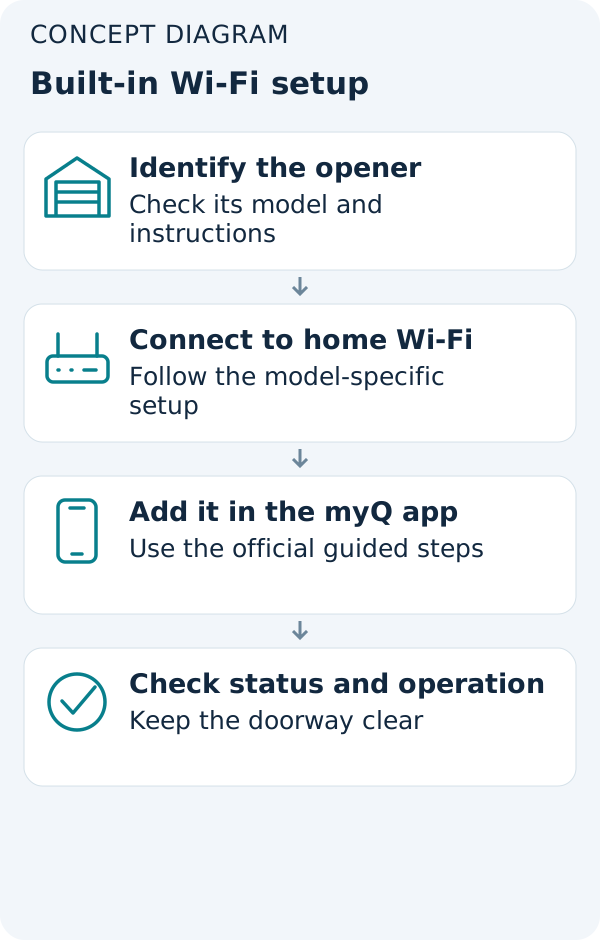
Match the model before the button sequence
The app’s setup choices depend on the opener and wall control. Keep its model beside you while following the steps below.
Already online but not moving? Start with the symptom →Network readiness
The current network guide calls for a visible 2.4 GHz network, DHCP and compatible wireless operation. It lists personal WPA2/WPA3 security and rejects enterprise, hidden and guest-network setups. Ask your network administrator or router provider to check compatibility rather than switching off security. This is not advice to create public port-forwarding rules.
What to do
- Sign into the consumer myQ app. Open device setup, choose Garage Door Opener and identify ceiling or wall mounting.
- Select the matching wall control and answer whether this opener has already been connected. If someone in your household owns it in myQ, use shared access instead of resetting it.
- Follow the setup prompt for your exact control and model. Stay near the opener. Do not substitute a long Learn-button hold for the action pictured in the app.
- Select your home Wi-Fi network, enter its password and complete the app’s connection prompts.
- Compare the app’s door state with what you can see. With everyone clear, make one observed test using the controls provided.
What success looks like
The device is online, its displayed state matches the physical door, and an observed authorized command completes.
Pause here if…
- There is an integrated camera: use the dedicated camera-opener setup guide linked in the official source.
- Error 310 or another-account ownership appears; use the ownership route rather than repeating Wi-Fi setup.
- The button, wall control or LED behavior does not match your model’s instructions.
Common questions
Should I press and hold Learn until something happens?
No. Use only the model-specific action shown. A programming control is not a trial-and-error troubleshooting button.
What should I record if setup fails?
The exact error text, opener model, app platform and the step that failed. Never include your Wi-Fi password.
Read the official guidance: Wi-Fi opener setup ↗ · myQ network requirements ↗ · Ownership and Error 310 ↗
Next: Reconnect after changing your router or Wi-Fi password · App will not load, device offline, or door will not move?
Smart Garage Control MYQ-G0401/821LMC; older hub variants must be selected accurately in the official setup flow.
Set up Smart Garage Control without skipping the sensor
Connecting the hub to Wi-Fi is only one part: the sensor and opener must also be paired.
Before you begin
- Confirm the opener against the official compatibility table. A post-1993 date alone is not sufficient.
- Use a sectional door with installed safety sensors; keep the travel path clear.
- Have the hub, its door sensor, the network credentials and safe access to the opener.
Compatibility is more specific than age
The table excludes direct operation of DIP-switch openers and Chamberlain-manufactured 433 MHz blue-learn-button units in this configuration. It distinguishes monitoring from control: seeing open/closed status does not prove the hub can move the door. Check the model-specific exception before retrying pairing.
What to do
- In myQ device setup, select Smart Garage Hub and then the actual device variant. Plug in the hub before permanent mounting.
- Follow discovery and Wi-Fi prompts for that variant. Smart Garage Control uses Bluetooth discovery; older black-hub instructions may request the hub serial number. Choose your 2.4 GHz home network.
- Remove the sensor battery tab and complete the app’s sensor test and pairing. Install the sensor as directed before motor pairing.
- Select the opener brand and, if asked, learn-button color. When instructed, press and quickly release the correct learn/program button; keep everyone clear because the door can move.
- Complete naming and installation instructions, then verify displayed state and one observed open/close cycle.
What success looks like
The app confirms pairing, reports the actual door position and can operate the compatible opener—not merely monitor it.
Pause here if…
- The setup illustration does not match the controller label.
- The sensor test fails or the app remains in Monitor Mode.
- Reaching the opener or installing the sensor cannot be done safely.
Common questions
The hub is online. Why is setup not finished?
There are separate network, sensor and opener links. Identify which confirmation is missing.
What if the door sensor does not respond?
Use the sensor test guide. A lit sensor LED does not rule out a weak battery; the official diagnostic also checks reliable communication with the hub.
Should I repeatedly reset everything?
No. Record the failed stage and exact symptom first. A factory reset is not the starting point for this guide.
Read the official guidance: Hub setup and pairing ↗ · Smart Garage Control compatibility ↗ · Door sensor battery test ↗
Next: App will not load, device offline, or door will not move? · Create a useful alert—and test where it arrives
A device previously working and still present in your own myQ account.
Reconnect after changing your router or Wi-Fi password
Update an existing connection without confusing network changes with ownership transfer.
Before you begin
- Confirm what changed: router, internet provider, network name or password.
- Have the new credentials and access to each affected device.
- If other people rely on the network, agree a suitable time before restarting network equipment.
Choose reconnect, not first-time setup
The current reconnection article specifically excludes first installation, moving into a home with someone else’s device, and Error 310. Each device is reconnected separately. An ownership error will not be cleared by simply changing Wi-Fi or reinstalling the app.
What to do
- Open the offline device in myQ. Look for Reconnect your device or the troubleshooting prompt, then Update Wi-Fi Settings. The alternate documented route is Settings → Devices → the device → Update Wi-Fi Settings.
- Follow the prompts for that exact product. Some models clear network settings; others enter setup using a specified Learn-button sequence. Do not mix sequences from different hardware.
- Choose the updated network, enter its password and finish the app’s flow.
- Wait for the online state, compare the displayed door position with reality and perform one safe observed test.
- Repeat only for the other affected devices. Record a remaining error instead of deleting and re-adding every item.
What success looks like
The existing device returns online in the intended account and responds normally.
Pause here if…
- The device belongs to another account or you have just moved in. Use the official ownership guidance with the legitimate owner.
- A prompt would remove devices, accessories or account access and you do not understand its consequences.
- You have an 828LM: check its Ethernet connection to the replacement router and use the dedicated gateway guide, not a Wi-Fi-hub reset.
Common questions
Do I need to change every device at once?
Treat each device separately so you can verify which connection has recovered.
What if the new Wi-Fi name is missing?
Confirm a compatible visible home network exists and ask the router provider to check its configuration. Do not guess the band from a network nickname alone.
Is a Wi-Fi reset an ownership reset?
No. They serve different purposes. Stop at an ownership message rather than assuming network setup will transfer the device.
Read the official guidance: Reconnect after router or Wi-Fi change ↗ · Ownership and Error 310 ↗ · 828LM product and connection type ↗ · myQ network requirements ↗
Next: App will not load, device offline, or door will not move? · Create a useful alert—and test where it arrives
Where the connection can fail
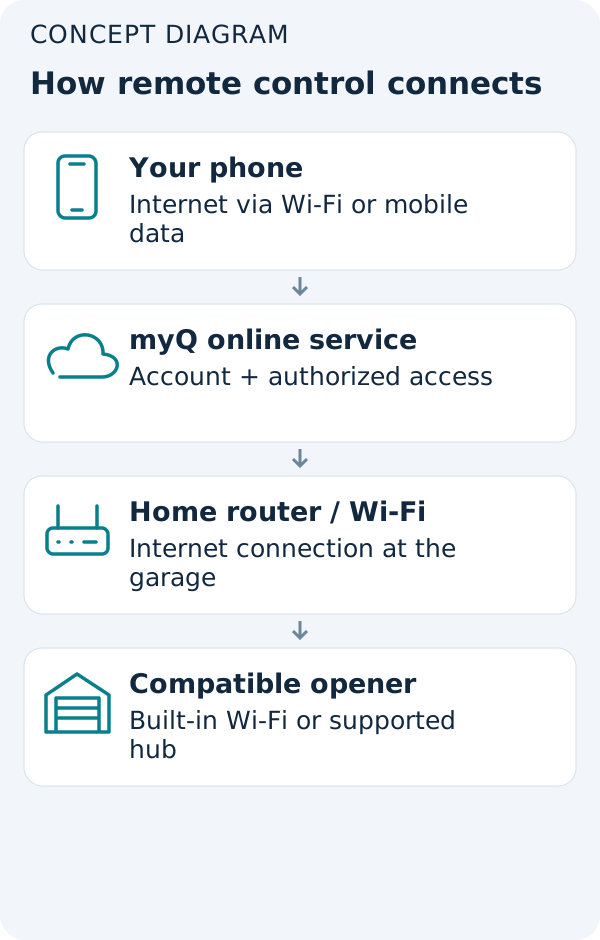
A phone with internet does not prove the garage is online. A hub online in the app does not prove that its door sensor and opener are paired. Compare each link with the symptom you see.
Choose the failed link →